
















If your WordPress site is showing errors or refusing to load, a missing wp-config.php file might be the reason. This file is essential because it connects your WordPress site to its database and defines important settings. Without it, your site simply cannot function. You can recreate this file quickly and safely.
Follow the steps below to learn how to access your file manager, recreate a missing wp-config.php file easily.
Step 1: Access Your File Manager #
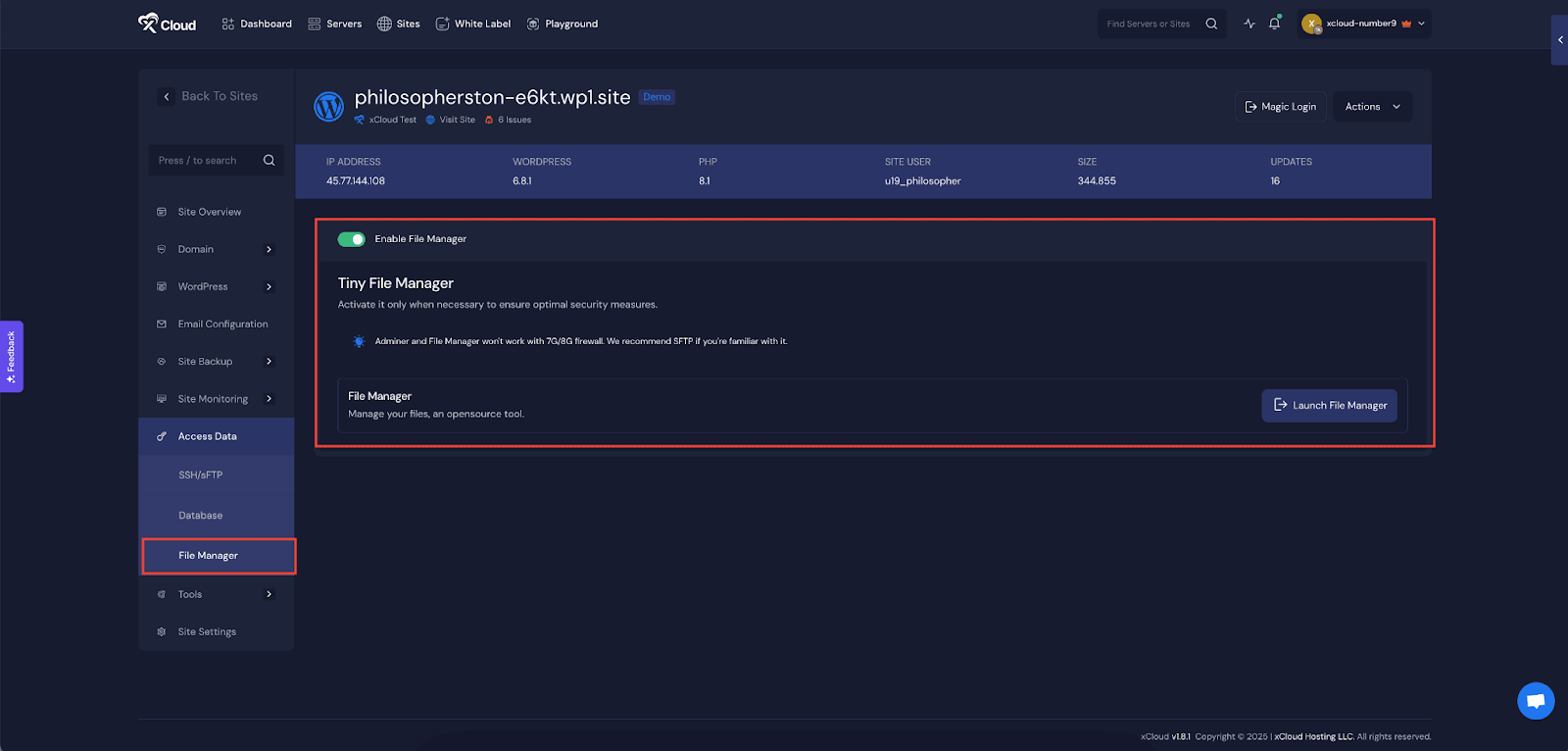
To resolve this issue, first go to your site and head over to the ‘Access Data’ option from the sidebar menu. Then choose the ‘File Manager’ option from the menu.
Next, toggle to enable the ‘File Manager’ and click on the ‘Launch File Manager’ to access the file manager.
Step 2: Create a New wp-config File #
In your WordPress root directory, search for the wp-config.php file.If the file does not exist, go to the wp-config.sample file and copy the code.
Click on the ‘New Item’ from the file manager dashboard. Then choose ‘file’ and give the file name as “wp-config.php” and click on the ‘Create Now’ button. Then go to the file, click on the ‘Edit’, and paste the copied code from the ‘wp-config-sample.php’ file and hit on the save button.
Note: Ensure you save it in the root directory, alongside folders like wp-content and wp-admin.
Step 3: Add Database Credentials #
Now go back to your xCloud dashboard and click on the ‘Database’ option. From here, toggle on to access the database. Then collect the ‘Database Name’, ‘Database User’, and ‘Databse Password’.
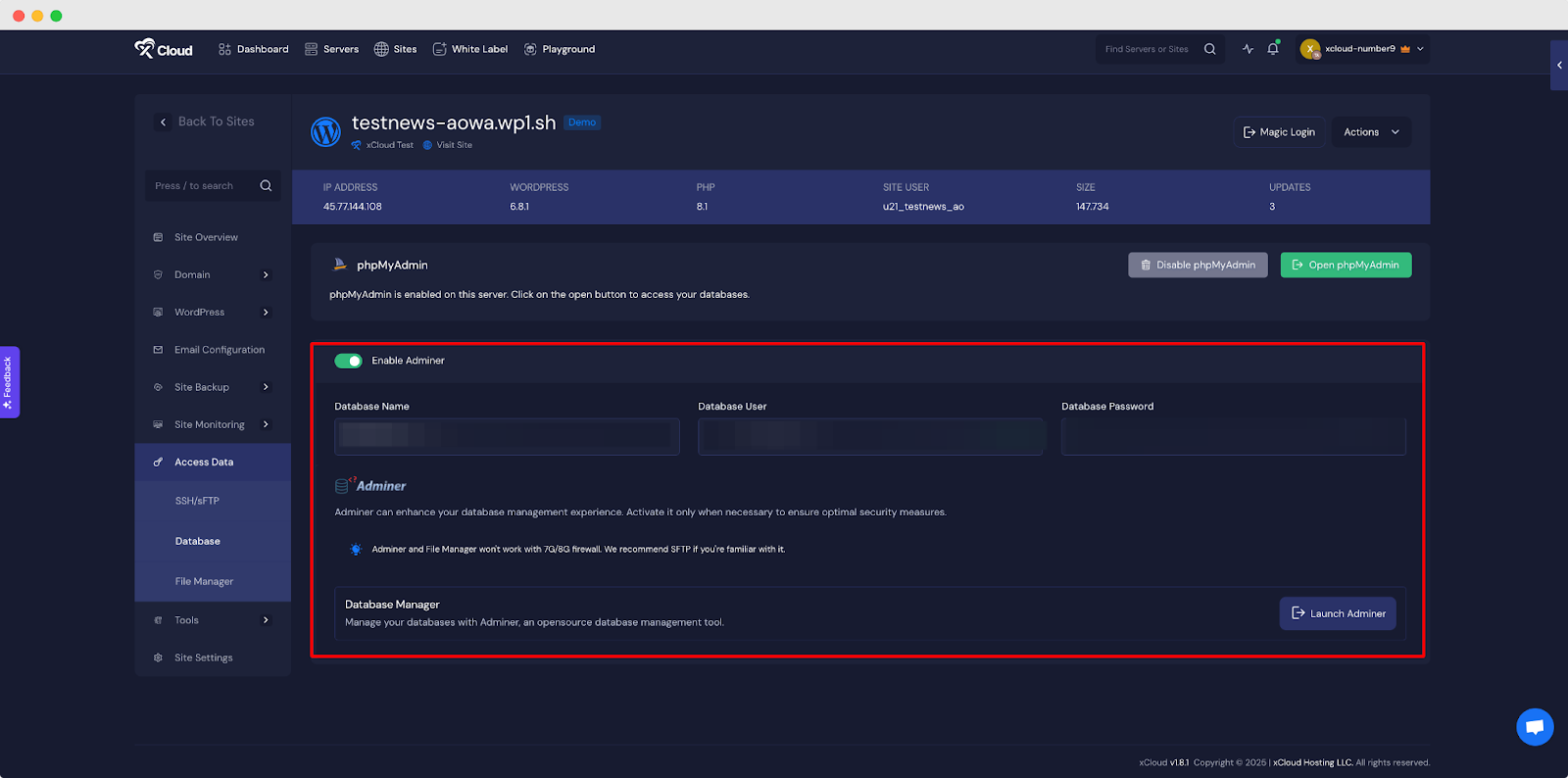
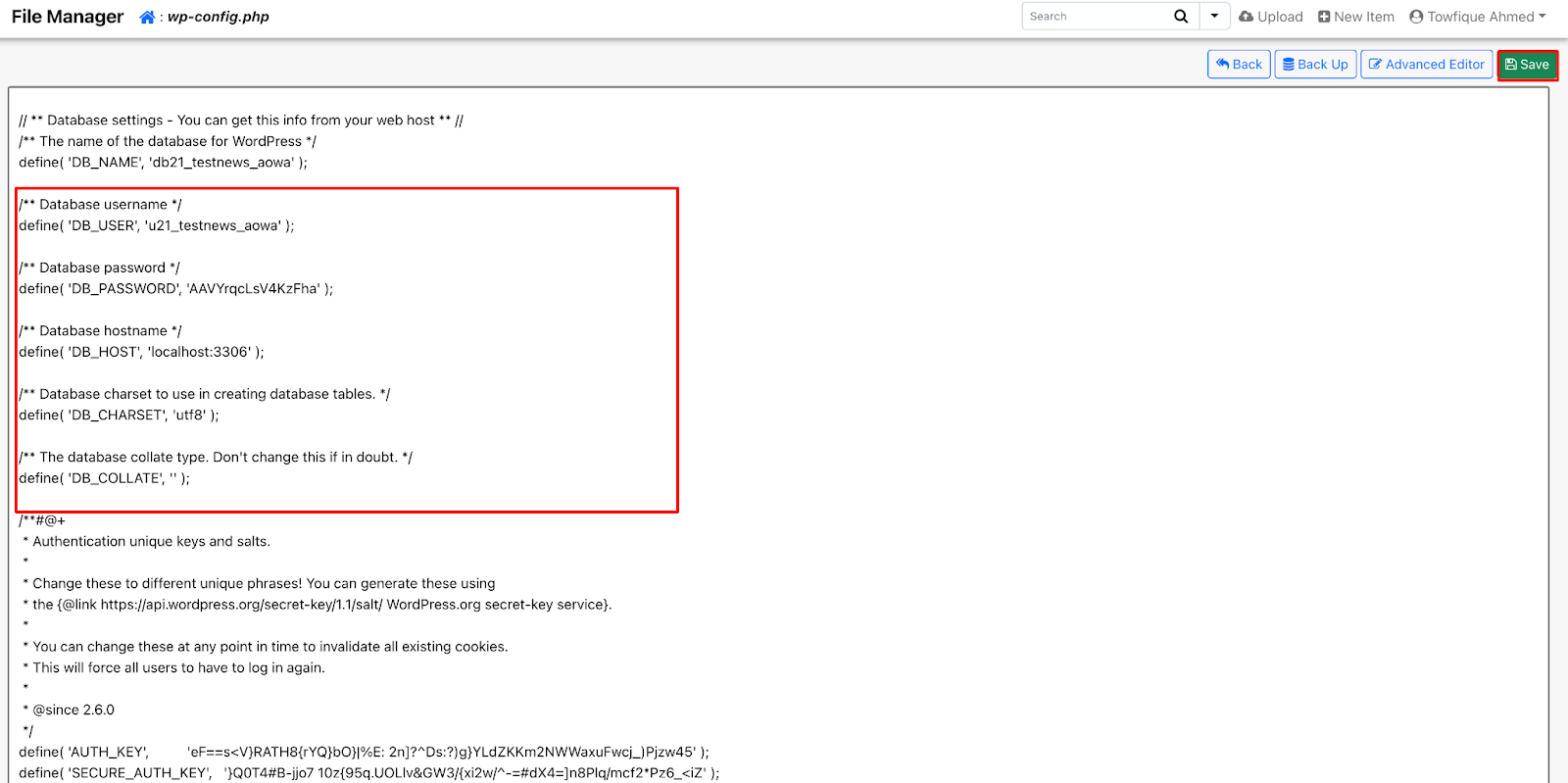
Next go back to the wp-config.php file and click on the ‘Edit’, find the following lines:
define('DB_NAME', 'database_name_here');
define('DB_USER', 'username_here');
define('DB_PASSWORD', 'password_here');
define('DB_HOST', 'localhost');
Replace the placeholder values with your actual database credentials. For example:
define('DB_NAME', 'wp_mysite');
define('DB_USER', 'admin_user');
define('DB_PASSWORD', 'secure_password123');
define('DB_HOST', 'localhost');
After inserting the values, click on the ‘Save’ button.
Step 5: Regenerate Security Keys #
WordPress uses security keys to encrypt user data. You need to generate new keys. Visit this in your browser. This URL provides a set of random security keys.
Alternatively, if you have terminal access to your server, you can use a command-line tool like wp-cli to generate keys:
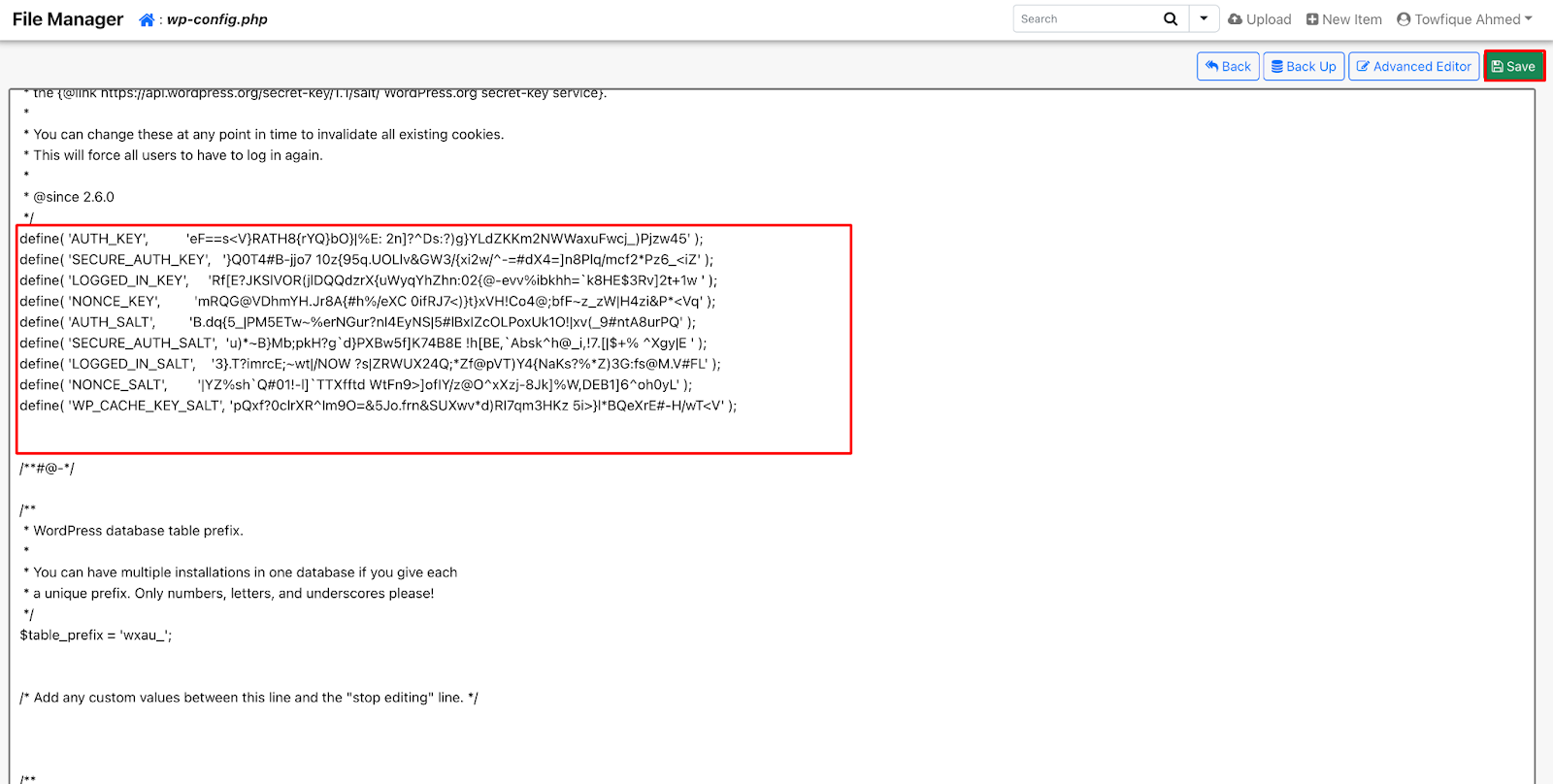
wp config shuffle-saltsCopy the generated keys from the URL or terminal. In wp-config.php, find the section with lines like:
define('AUTH_KEY',         'put your unique phrase here');
define('SECURE_AUTH_KEY',  'put your unique phrase here');
define('LOGGED_IN_KEY',    'put your unique phrase here');
define('NONCE_KEY',        'put your unique phrase here');
define('AUTH_SALT',        'put your unique phrase here');
define('SECURE_AUTH_SALT', 'put your unique phrase here');
define('LOGGED_IN_SALT',   'put your unique phrase here');
define('NONCE_SALT',       'put your unique phrase here');
Replace the credentials with the new keys and save the file.
Alternative Method: Restore from Backup #
If you have a backup of your website, you can restore the wp-config.php file directly from it. First, download your backup from wherever it is stored. Then extract the backup files on your local device. Look inside for the original wp-config.php file.
Once you have the file, go to your file manager. Use the upload option to upload the wp-config.php file to the root directory of your WordPress installation. Make sure it is placed alongside the wp-content and wp-admin folders.
After the upload is complete, your site should be able to run as before, using the restored configuration file.
And that’s it this is how easily you can recreate a missing wp-config.php file for your WordPress site.
Still stuck? Contact our support team for any of your queries.


